> ## Documentation Index
> Fetch the complete documentation index at: https://docs.coralmessaging.com/llms.txt
> Use this file to discover all available pages before exploring further.
# Salesforce
> How to connect to Salesforce and manage your integration
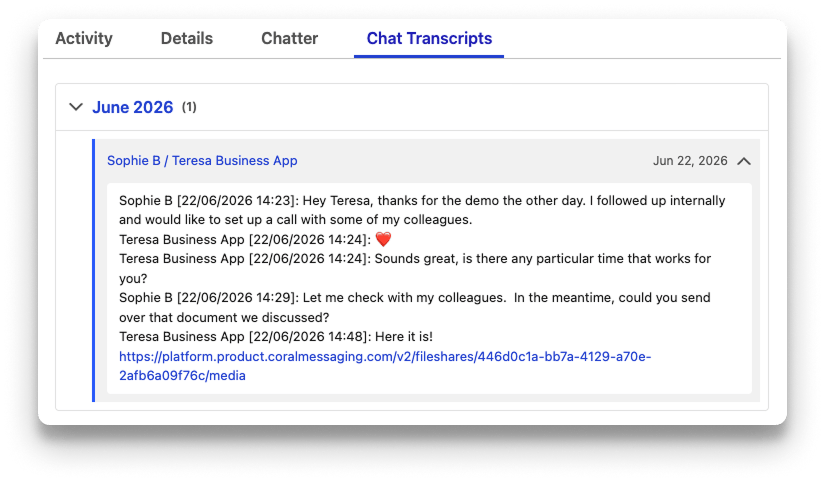
Integrating Salesforce with your Coral account is simple and quick. One set up, your Coral WhatsApp integration supports the following:
* **Daily chat sync** - Transcripts from all chats will be uploaded in a daily batch to Salesforce, at midnight according to a timezone of your choosing.
* **Automatic association with Contacts and Opportunities** - Your chat transcripts can sync to both Contact records and Opportunity records.
* **Contacts sync** - Your new contacts in WhatsApp can be added to Salesforce automatically, and details about your Salesforce Contacts can be added to your Coral account.
 ## Integration Requirements
* **Active Salesforce account** - Ensure your Salesforce account is set up. Only Enterprise tier Salesforce plans, or Professional tier plans with the Web Services API add-on, support the Coral integration.
* **Required Coral permissions** - Only a Coral Admin user can set up Coral integrations.
## Set up the Integration
You must take action in both your Coral account and your Salesforce account to set up the integration.
You must have your Contact's phone number used in WhatsApp entered into the Mobile Phone Number, Home Phone Number, Other Phone Number, or Phone Number field in order for the integration to see that your Contact is in an active Coral chat and attach the chat transcript.
Log in to your Coral dashboard as an Admin, go to the Integrations tab, click Connect, and follow the prompts.
As a final step, you need to adjust the default display for your Contact records and/or Opportunities records for all users or your Salesforce account so that the chat transcripts can be viewed.
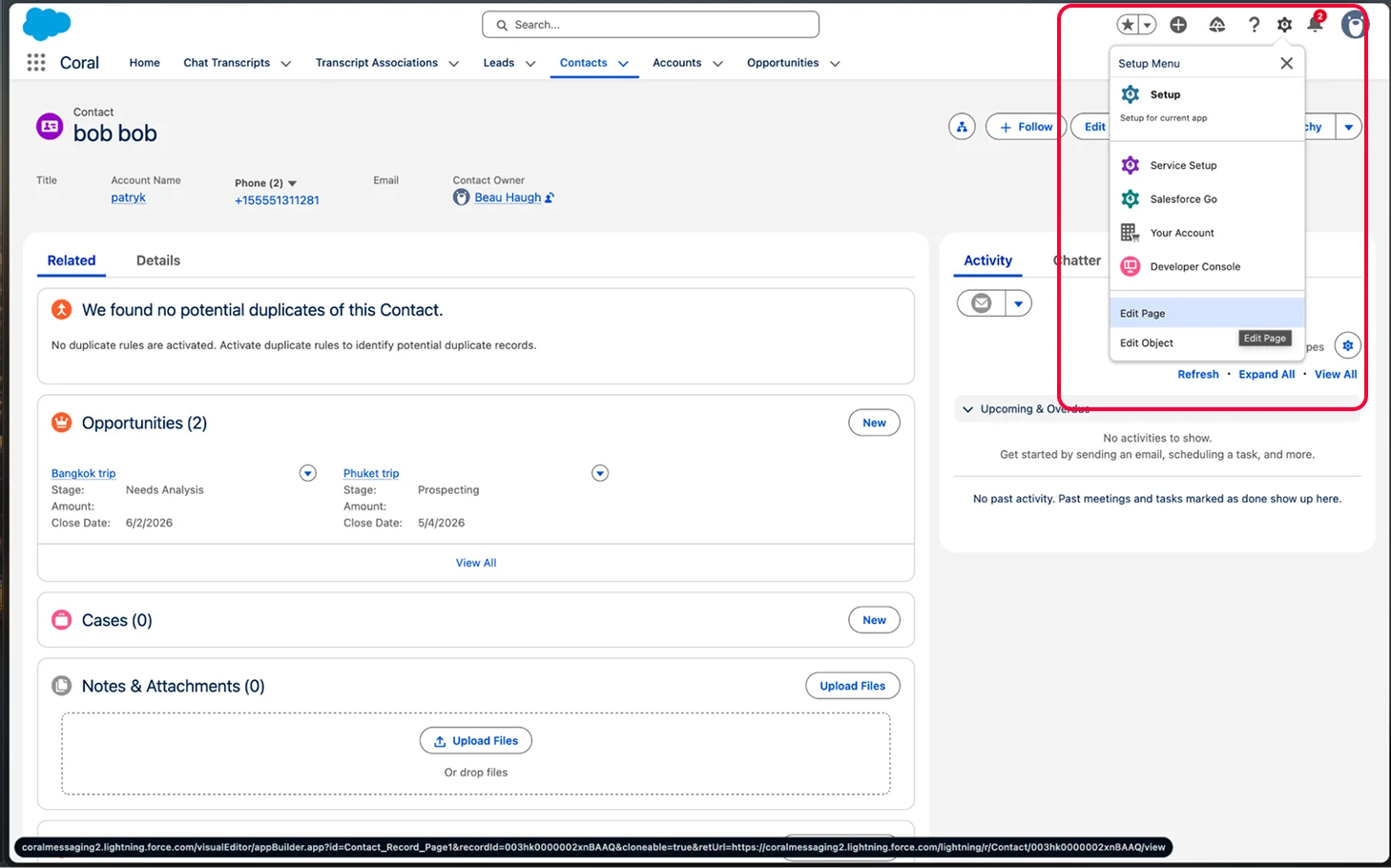
1. Go to your Contact page, and on the top-right corner, click on the Cog icon, and select “Edit Page”
## Integration Requirements
* **Active Salesforce account** - Ensure your Salesforce account is set up. Only Enterprise tier Salesforce plans, or Professional tier plans with the Web Services API add-on, support the Coral integration.
* **Required Coral permissions** - Only a Coral Admin user can set up Coral integrations.
## Set up the Integration
You must take action in both your Coral account and your Salesforce account to set up the integration.
You must have your Contact's phone number used in WhatsApp entered into the Mobile Phone Number, Home Phone Number, Other Phone Number, or Phone Number field in order for the integration to see that your Contact is in an active Coral chat and attach the chat transcript.
Log in to your Coral dashboard as an Admin, go to the Integrations tab, click Connect, and follow the prompts.
As a final step, you need to adjust the default display for your Contact records and/or Opportunities records for all users or your Salesforce account so that the chat transcripts can be viewed.
1. Go to your Contact page, and on the top-right corner, click on the Cog icon, and select “Edit Page”
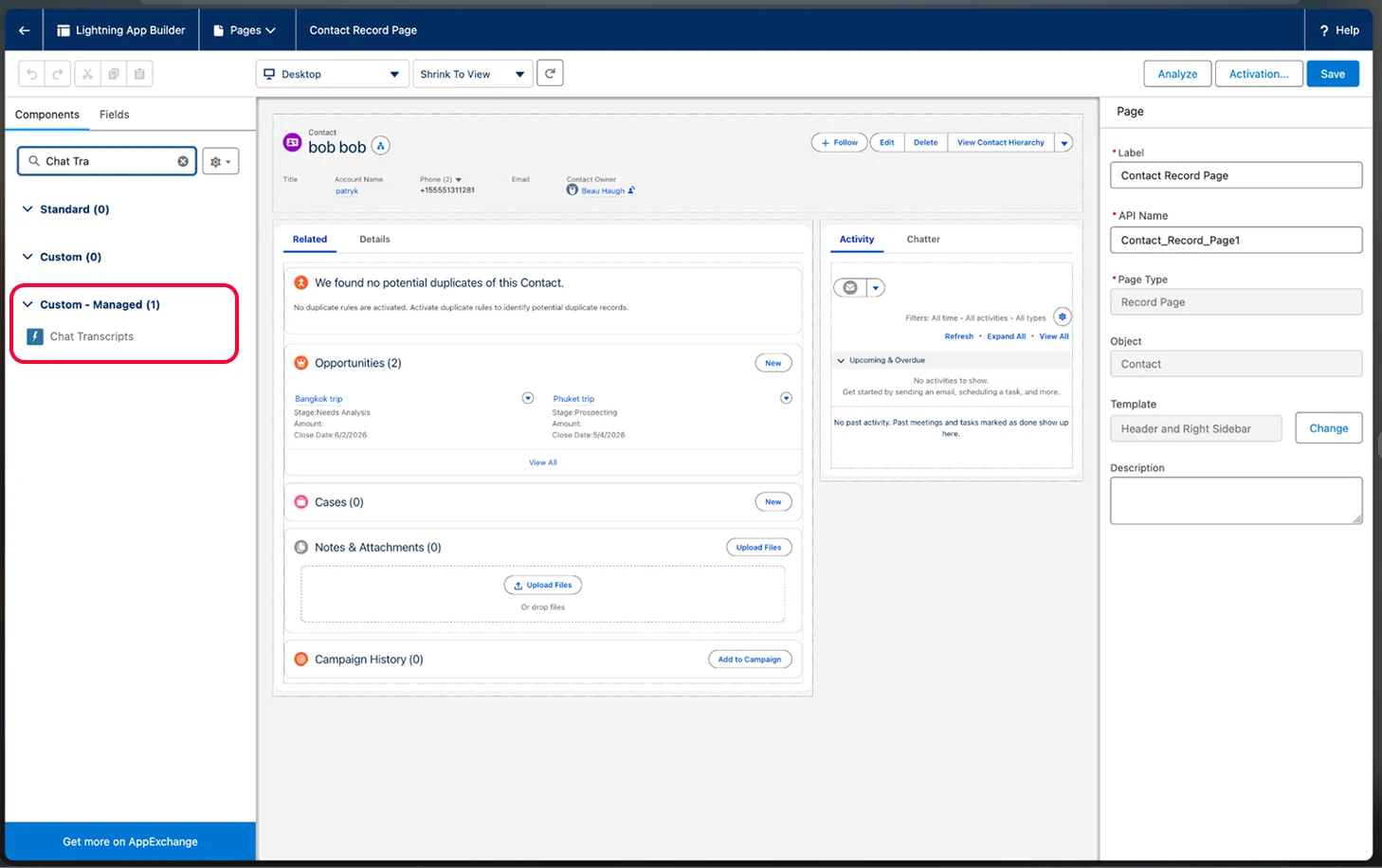
 2. On the left-hand side, you’ll see a list of available components. Search for Chat Transcripts component. Grab and drop it anywhere on the page that you want it to appear to your users, and click Save.
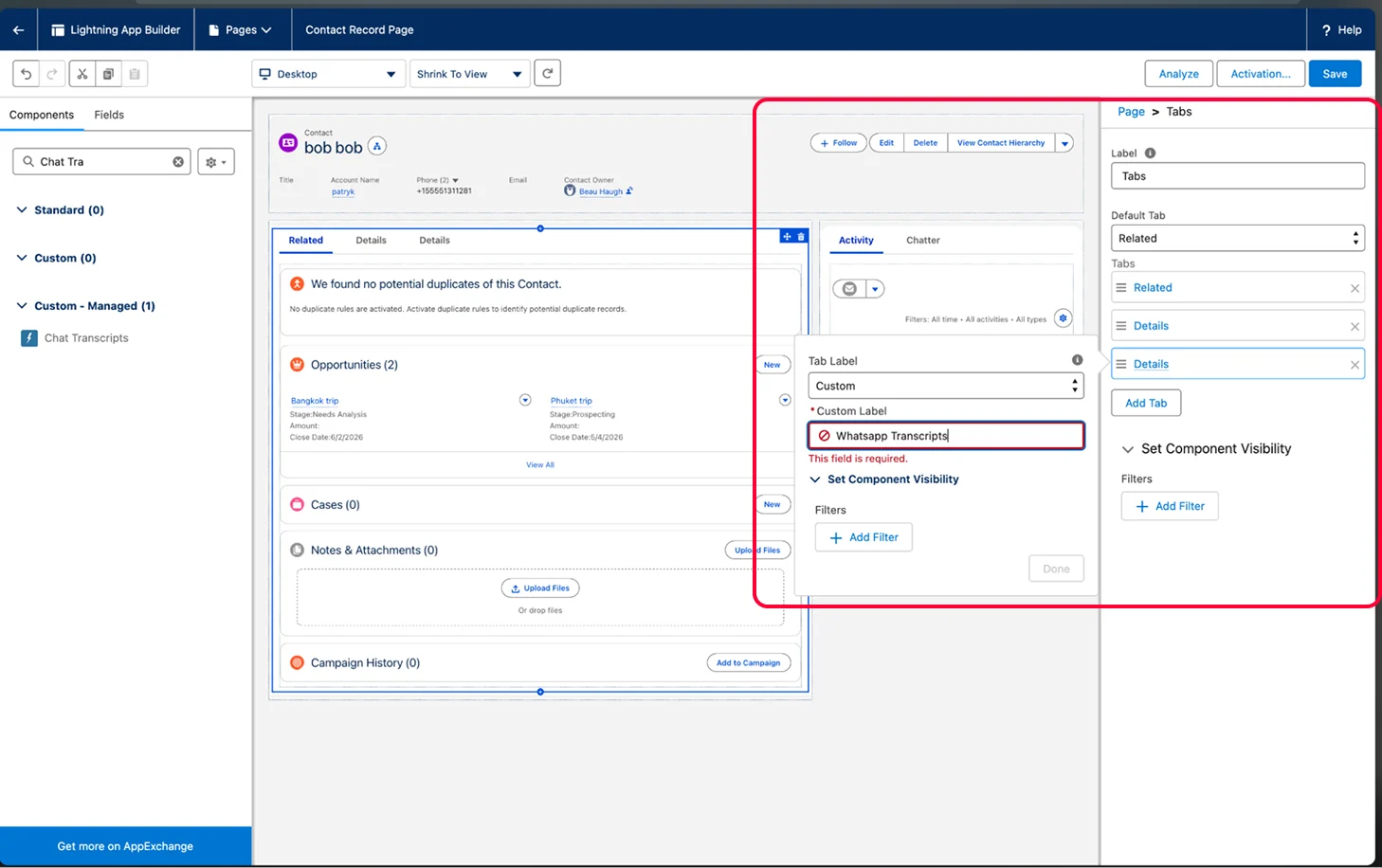
 3. OPTIONAL - If you want to place the component as a new tab on the Contact page, click on the main Tabs component, and add a new Tab. Grab and drag the component in the content section of the new tab you just created.
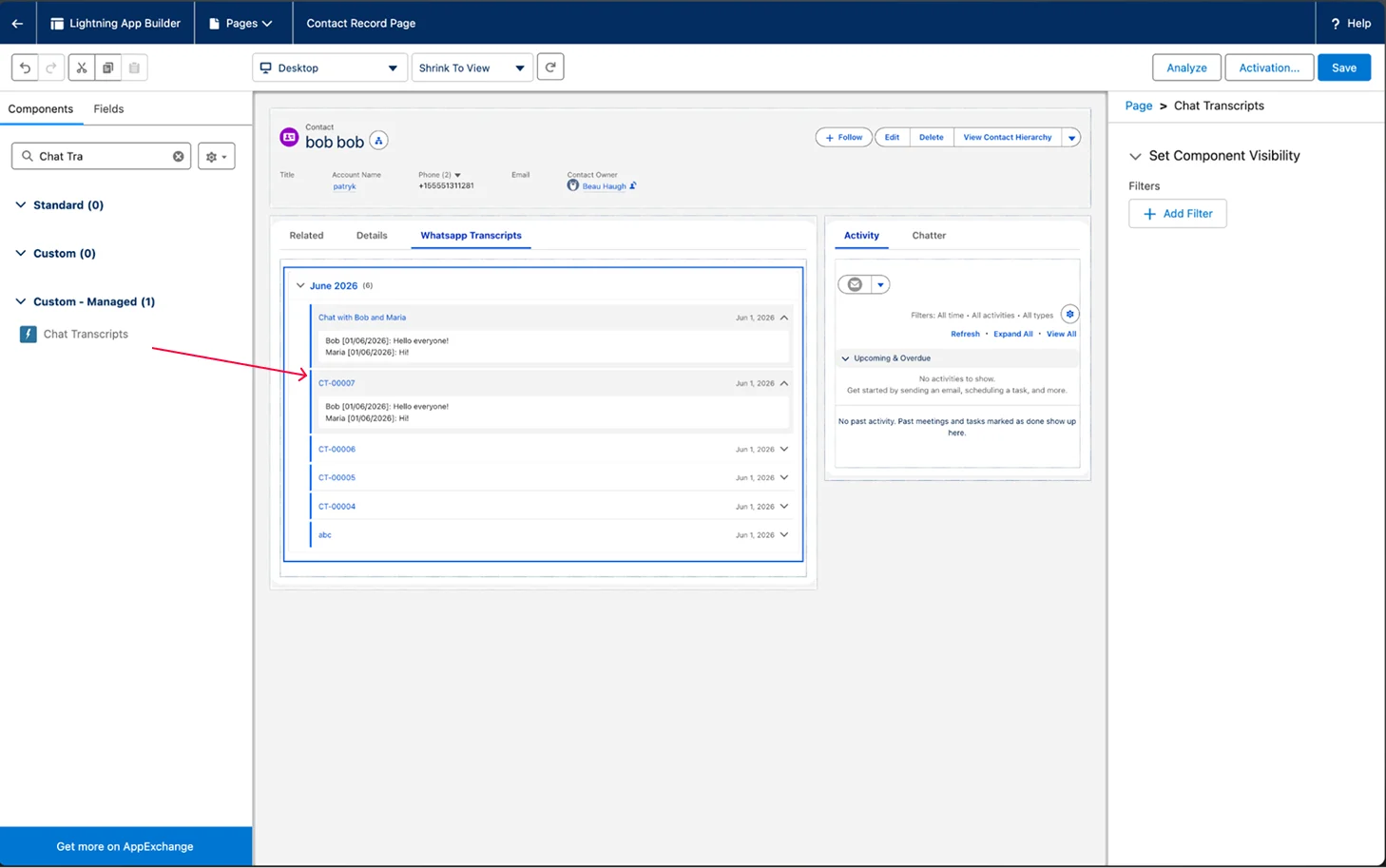 Repeat for Opportunities if you want the transcripts to appear on Opportunity records as well.
* Your Coral WhatsApp chat transcripts will be uploaded to Salesforce daily around midnight, according to the timezone that you choose. To select your timezone, navigate to the Controls tab in your Coral Admin account.
* To sync Coral chats to Opportunities in addition to Contacts, please provide your Coral rep with your Salesforce pipeline or Record Type names.
Repeat for Opportunities if you want the transcripts to appear on Opportunity records as well.
* Your Coral WhatsApp chat transcripts will be uploaded to Salesforce daily around midnight, according to the timezone that you choose. To select your timezone, navigate to the Controls tab in your Coral Admin account.
* To sync Coral chats to Opportunities in addition to Contacts, please provide your Coral rep with your Salesforce pipeline or Record Type names.