Before you begin
This is a two-step process, which must be completed one step after the other in the same browser session, so be sure you have the necessary information to complete both parts before you start on step 1. You will need two things ready before you start:API phone number
A phone number that you want to use for your organization’s Coral API phone number. You must be able to verify it by receiving a PIN or phone call. There are some phone number types that WhatsApp won’t allow.
Admin access to Meta account
If your organization doesn’t have a Meta Business Portfolio account, you can set one up. If your organization already has one, it’s important that you use it, and Coral onboarding must be done by an admin of that account.
Step 1: Create a Coral account
The person completing this part will become the Admin of your organization’s Coral account. They can add more users later.Create account
Create account
Navigate to https://product.coralmessaging.com/signup/. Use the 4 digit code to start the process that was provided you by your Coral rep. The Coral product is still in closed beta and not widely available; please book time with Coral if you’d like to learn more and get access.Once this step is complete, click the button that says “Continue with Facebook” to move on to the next part.
IMPORTANT: when you provide your WhatsApp consumer app phone number, do not enter the phone number that your organization will use for your Coral API. This phone number will be needed for Part 2. Instead, enter the phone number that you normally use in WhatsApp chats with your work clients and contacts.
Step 2: Create a WhatsApp account
The person completing this part must be an admin of your organization’s Meta Business Portfolio. You will need to have the phone number handy that you want to use for your organization’s Coral API phone number, and you’ll need to be able to receive a verification code on it.Launch the WhatsApp window
Launch the WhatsApp window
Click “Continue with Facebook”. This step will open a pop-up window on facebook.com. Do not close the pop-up window or navigate to a different Coral website or close the Coral page. You will need the Coral window for later steps in this guide. Do not copy the URL of the pop-up window to send to another user as registration will fail. You must complete all of these steps using the same browser session in order for the data exchange between Meta and Coral to work properly and register you.
Log in to Facebook
Log in to Facebook
Log into Facebook if you haven’t already or click Continue as [your name] if you’re already signed in. Facebook will then ask you to allow Coral Messaging to manage your WhatsApp Business Account. Click Get Started to proceed.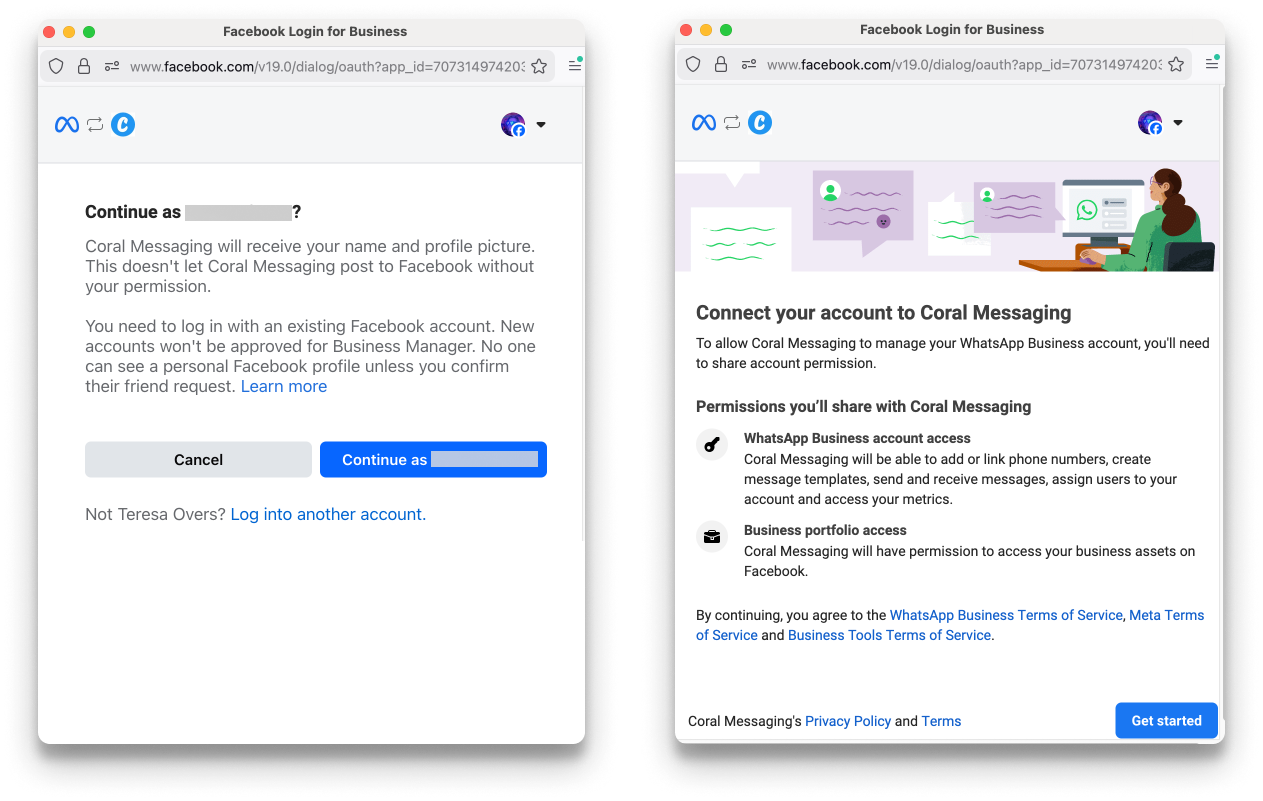
Select Meta Business Portfolio
Select Meta Business Portfolio
Select your the Meta Business Portfolio for your business from the list. You must be an admin of a Meta Business Portfolio for it to appear on this list. If you don’t have one, you may create a new one by selecting the option Create a Business Portfolio.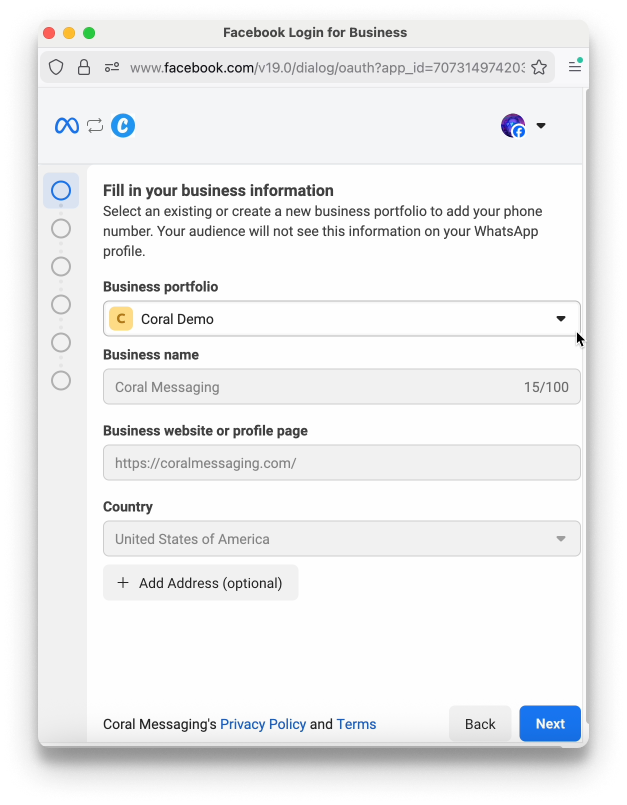
Create WhatsApp Business Account
Create WhatsApp Business Account
Create your WhatsApp Business Account.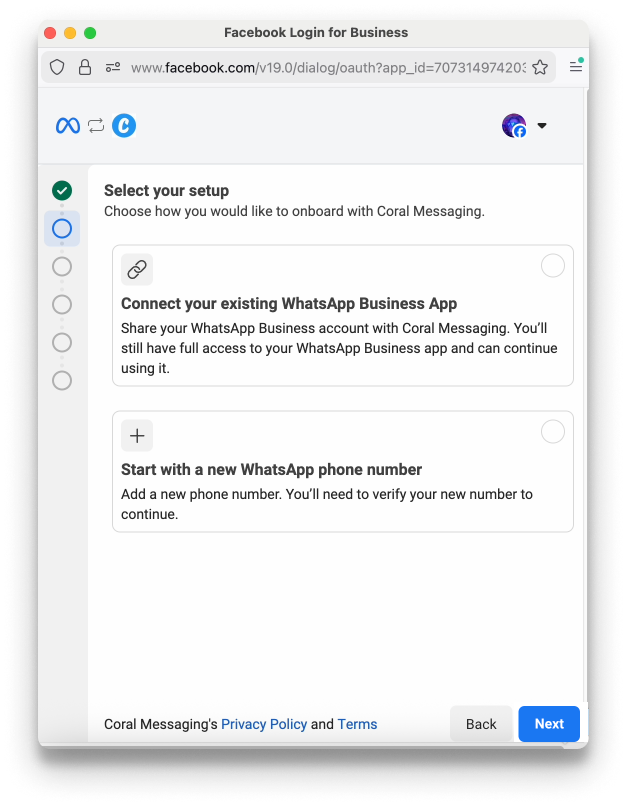
IMPORTANT: DO NOT select a WhatsApp Business Account that already exists in the dropdown list. Instead, choose to create both a new WhatsApp Business Account and WhatsApp Business Profile.
Select your setup
Select your setup
Select the second option, “Start with a new WhatsApp number”.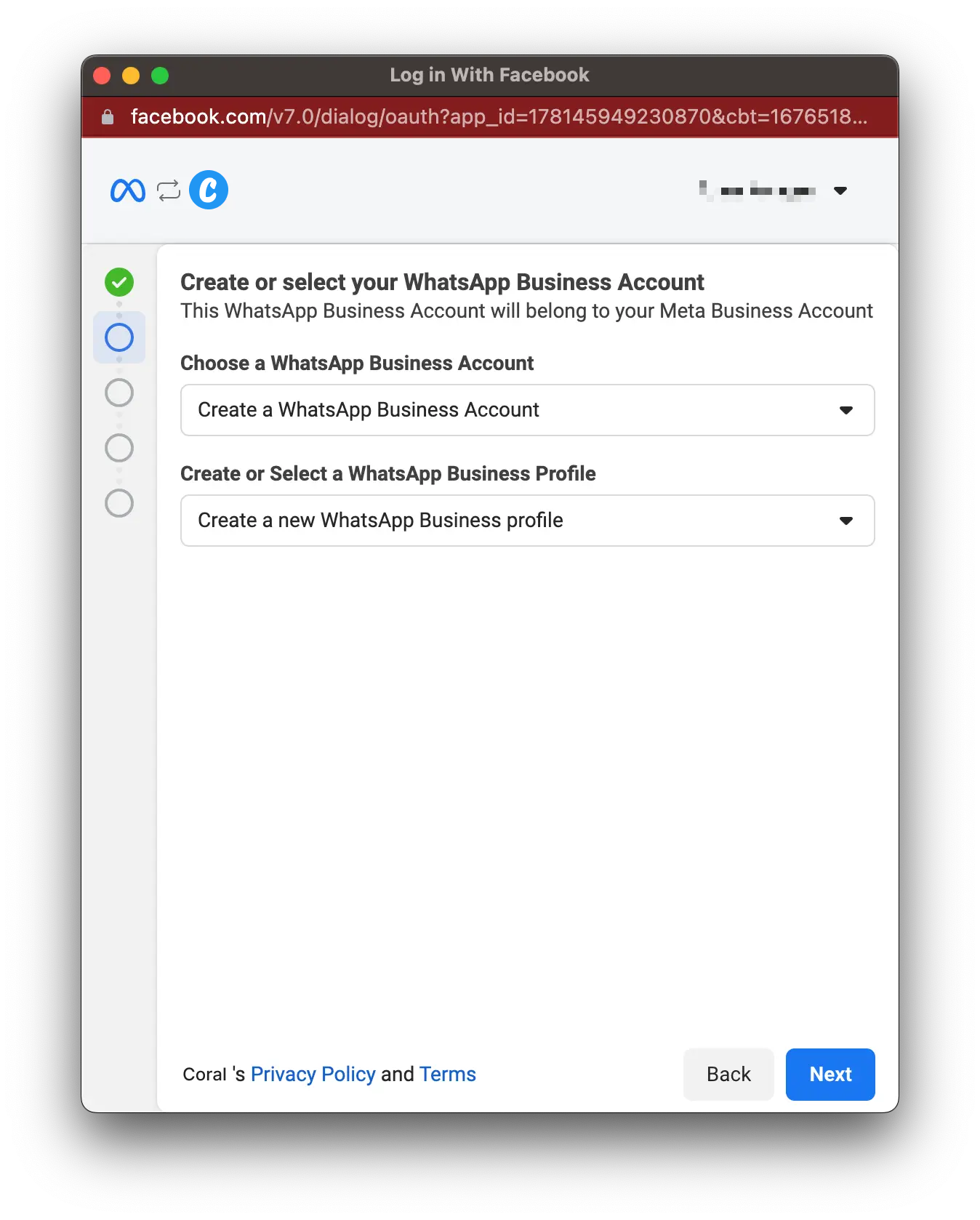
Create WhatsApp business profile
Create WhatsApp business profile
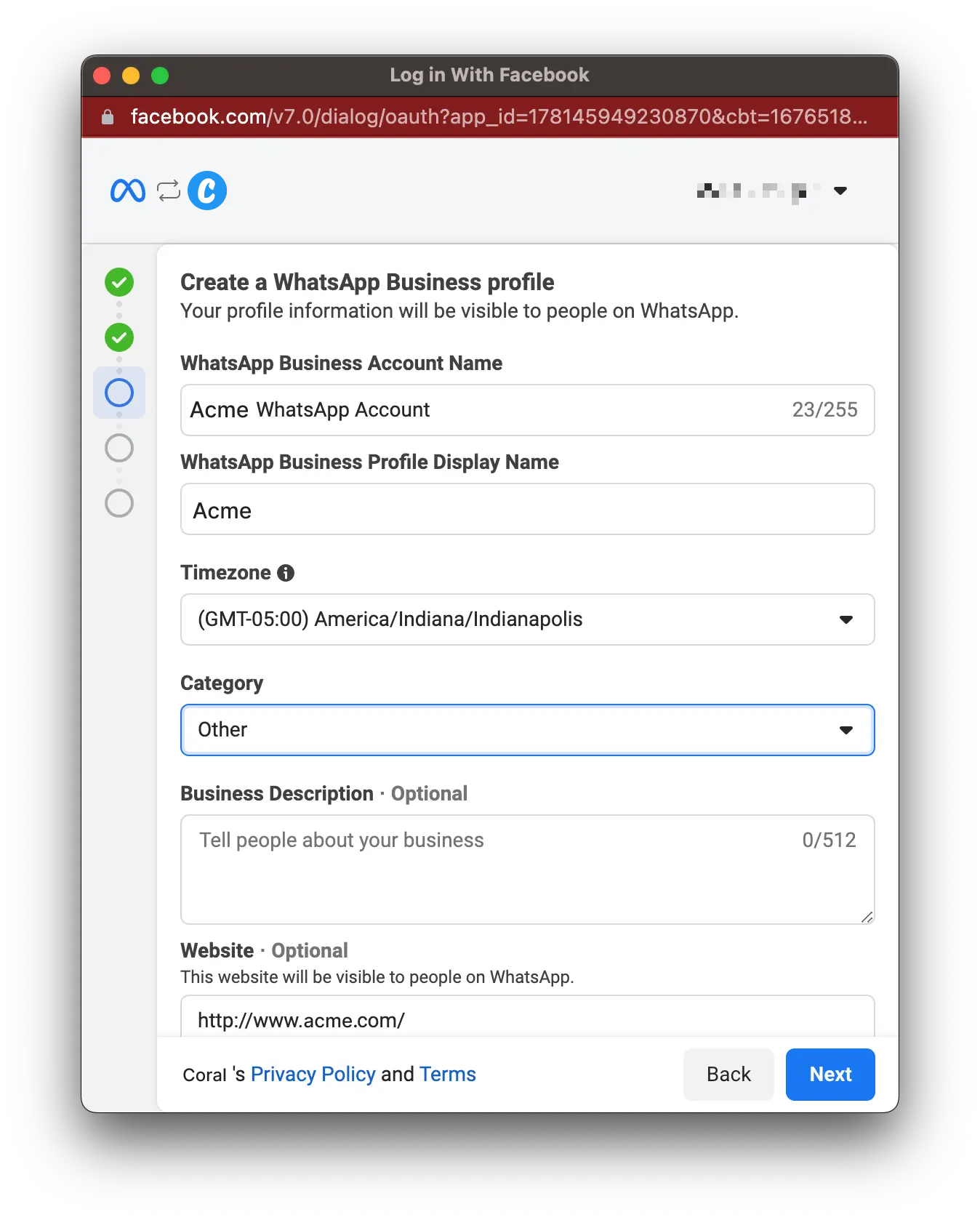
you will need to enter in the following information:
- WhatsApp Business Account Name - This is only used for internal purposes and is not customer-facing. This might be fixed already and based on your Meta Business Portfolio name.
- WhatsApp Business display name - This is what your customers will see. It MUST meet the requirements set by WhatsApp. We recommend using your company name as the display name, as WhatsApp will reject anything that does not match the company name in the linked Meta Business Portfolio.
- Category - Select the category that best describes your business. This is shown to consumers when they view your profile and can be updated later by Coral as needed.
-
You may optionally click Show more options and fill out the below. These fields can be also be added or updated later by Coral as needed:
- Business Description - This is also shown to consumers when viewing your profile in the WhatsApp application.
- Website - This is also shown to consumers when viewing your profile in the WhatsApp application.
Verify your phone number
Verify your phone number
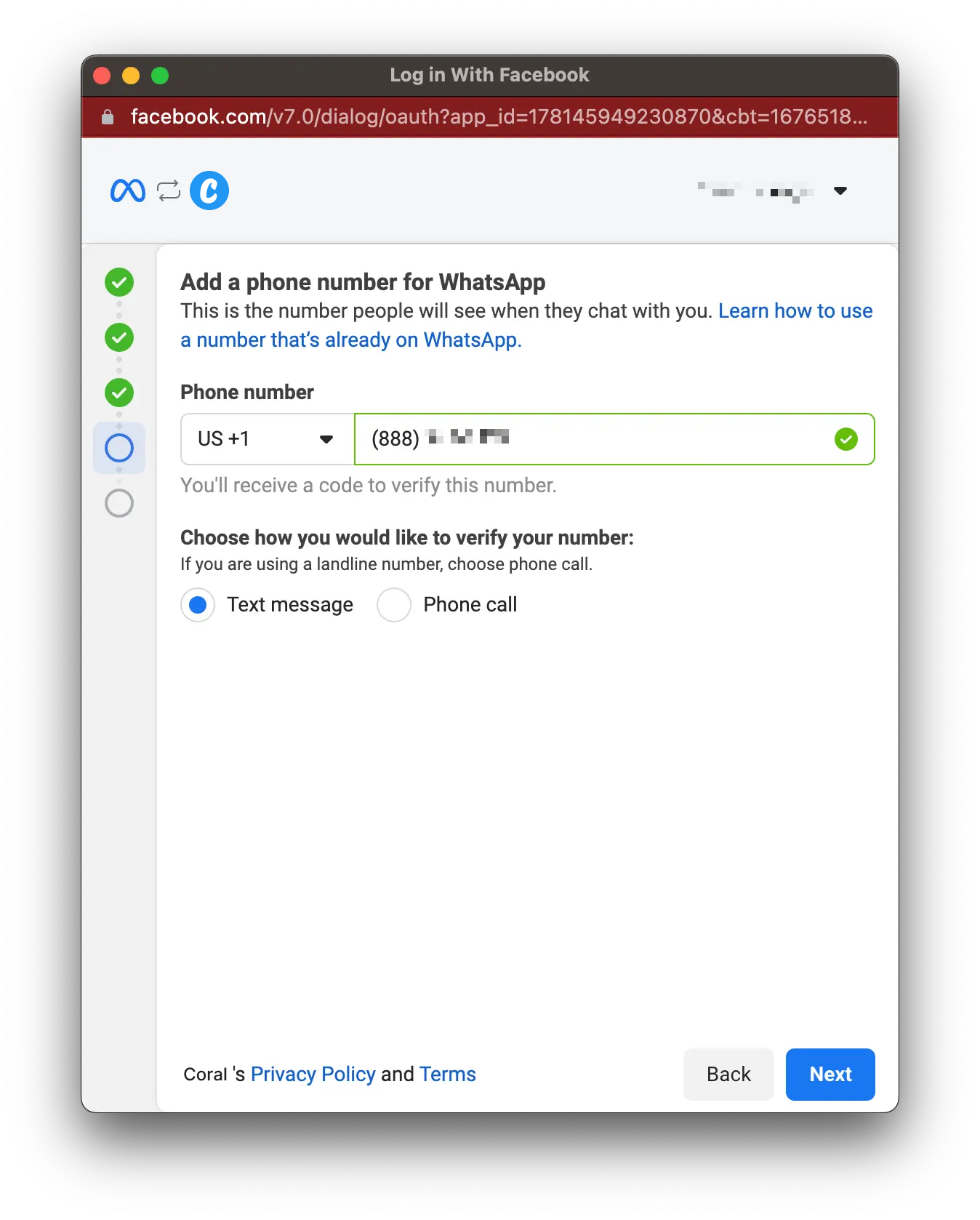
Add in the phone number you want to use for your Coral API here. Meta requires you to verify phone number ownership as a part of the registration process. This is done by sending a verification code using either SMS or an automated voice call. Follow the instructions.