
Using Coral groups from the WhatsApp app
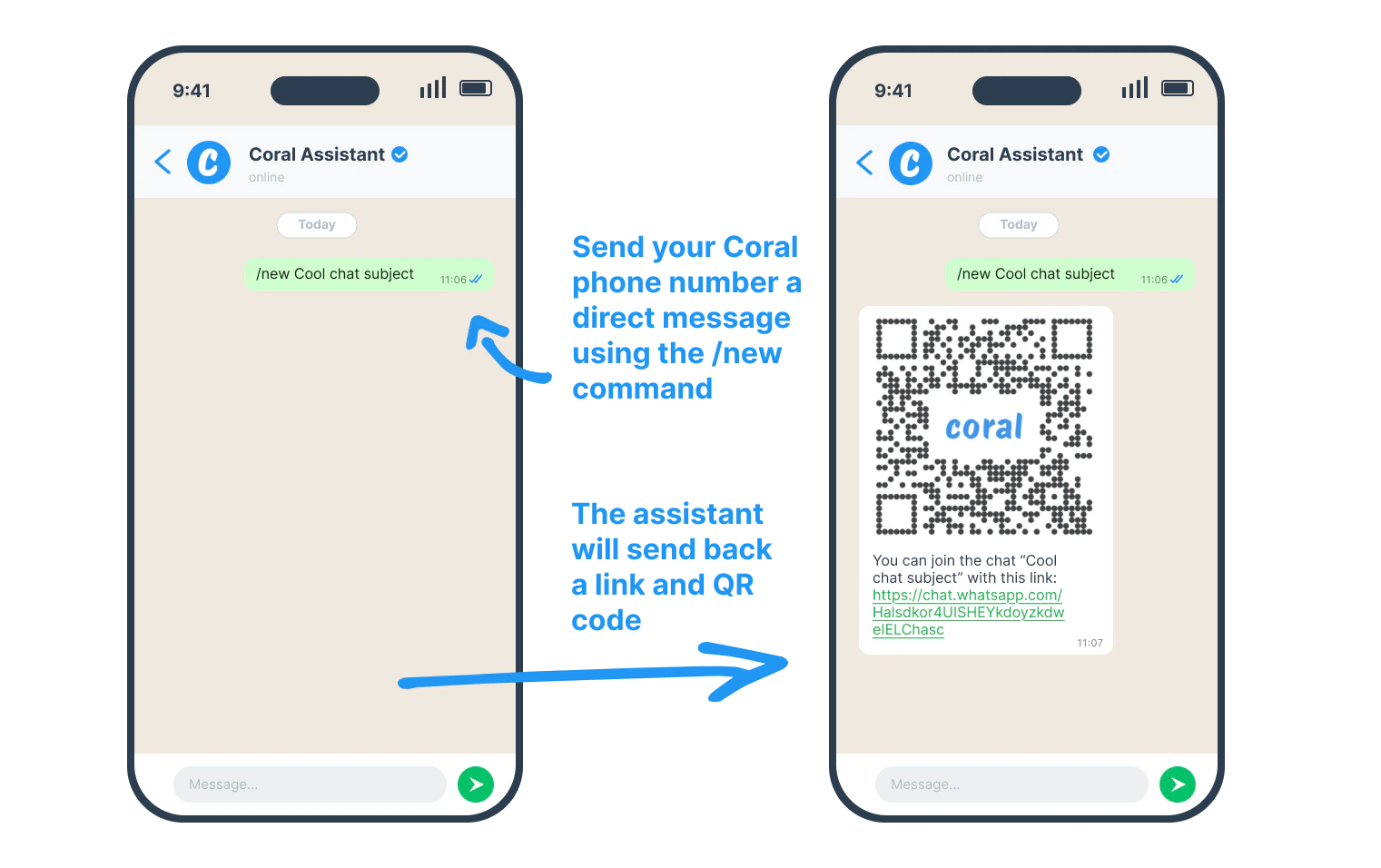
When interacting with the Coral product from the WhatsApp app, note that group management features like creating a Coral group and adding and removing people work differently than a regular group chat among friends. This is because you as an individual participant cannot be the admin of a group chat, only your company is the chat admin.- Create your first chat from within WhatsApp. Start a direct chat in your WhatsApp app with your organization’s Coral API phone number. We recommend you save the Coral API phone number into your contacts on your phone as “Coral Assistant” since you will be sending WhatsApps to it a lot going forward in order to control and access features of your Coral account. The most common command to use in a direct chat with your Coral Assistant is to create a new group chat:
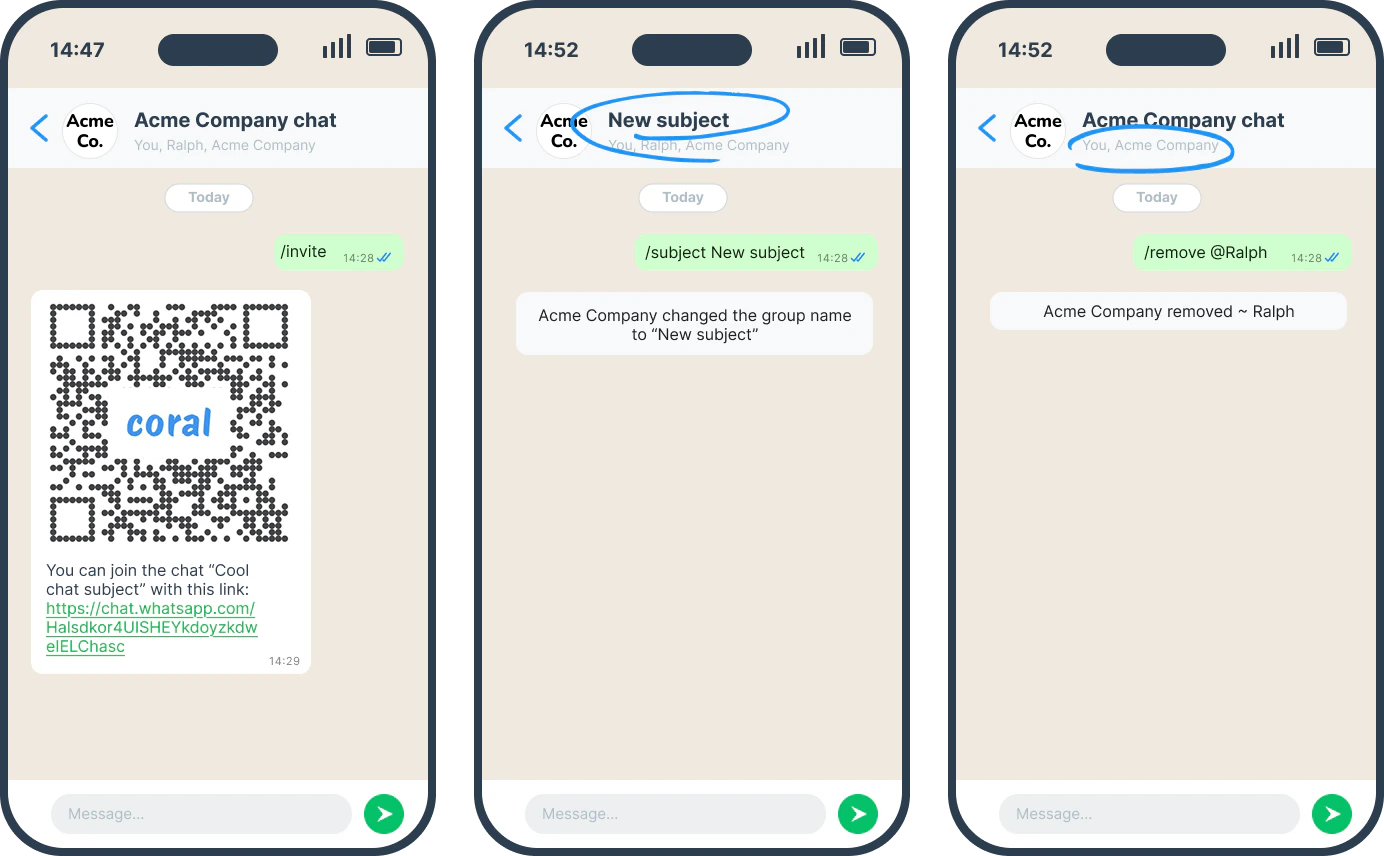
- Try some “slash commands” from inside of your group chat. You can perform common functions from directly inside your Coral group chat:
Using Coral groups from the dashboard
Your organization’s Coral account must have a WhatsApp payment method set up to create chats and add participants to an existing chat from the Coral dashboard.- Create a chat. From the Coral dashboard, you can create your chats one by one, or in bulk by uploading a CSV file in the Create Chat tab with phone numbers.
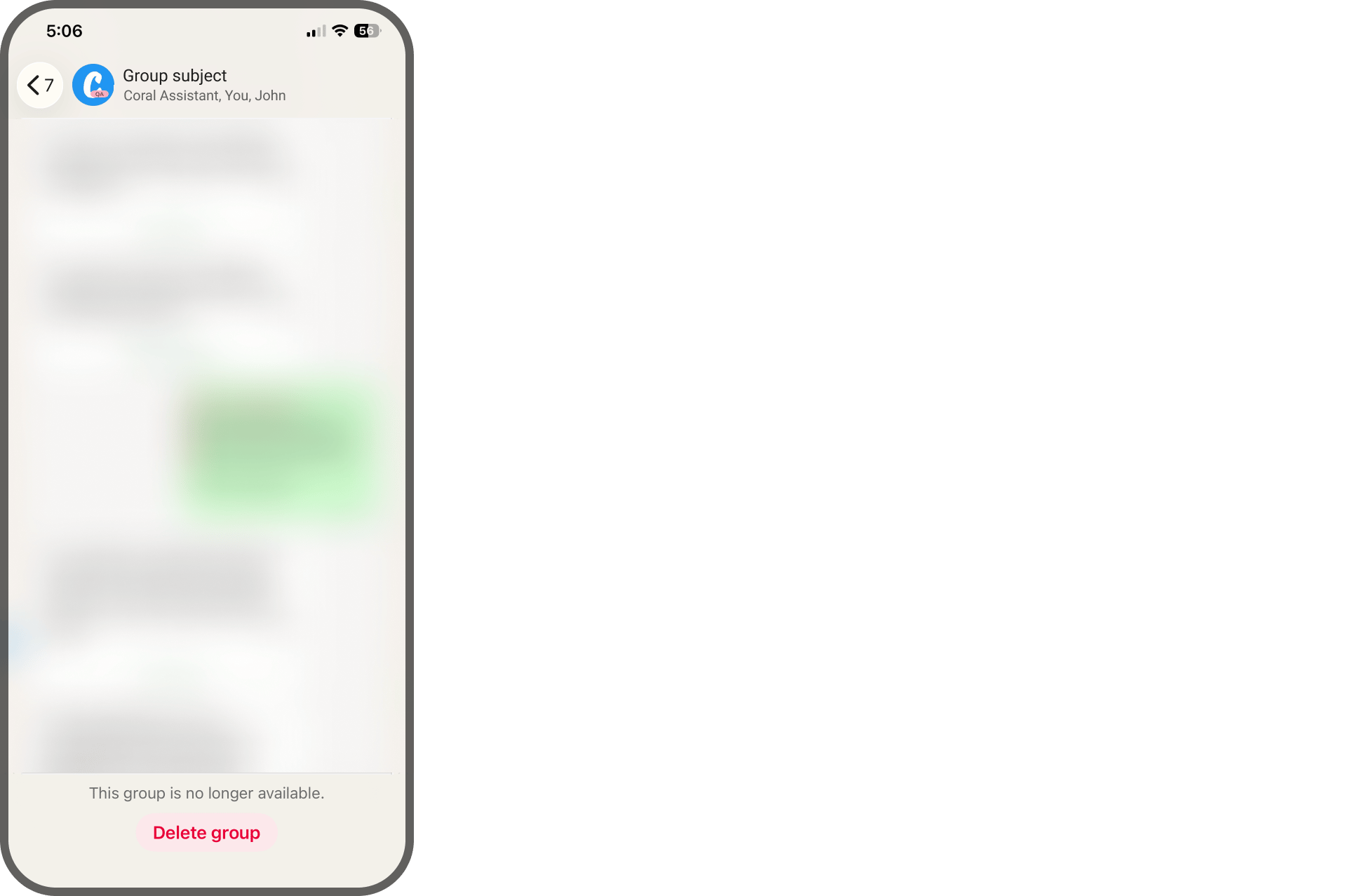
- Basic chat management. Currently, changing the photo or the group description or deleting a chat can only be done from the Coral web dashboard. Log in to the Coral web dashboard, and navigate to the Chats tab, click on the chat where you want to change the settings, and click on the menu on the top right to open the Edit Chat window. When a chat is deleted, its history remains viewable in the WhatsApp app for all active participants, but sending further messages is disabled; a deleted chat cannot be reversed.
IMPORTANT: if you remove a participant from a Coral chat, they can never again rejoin the chat. We suggest that they remove themselves from the group chat instead using their WhatsApp app as they normally would, which allows them to rejoin in the future.