Requirements
- The process must be initiated in the Coral dashboard by a person who is both a Coral admin and an admin of your organization’s Meta Business Portfolio.
- The person whose business phone number you want to sync must participate by being ready to receive a WhatsApp message to their phone number and verify that they approve.
- The business phone number you want to sync must be on the WhatsApp Business App (not the regular WhatsApp app) and actively used on the WhatsApp Business App for at least a week before syncing.
How to sync
Launch the process
Launch the process
Click “Add Synched User” to setup syncing of direct chats of a completely new Coral user, or an existing Coral user. Complete the basic information, then click “Continue with Facebook”. This step will open a pop-up window on facebook.com. Do not close the pop-up window or navigate to a different Coral website or close the Coral page. Do not copy the URL of the pop-up window to send to another user as registration will fail. You must complete all of these steps using the same browser session in order for the data exchange between Meta and Coral to work properly and register you.
Log in to Facebook
Log in to Facebook
Log into Facebook if you haven’t already or click “Continue as [your name]” if you’re already signed in. Facebook will then ask you to allow Coral Messaging to manage your WhatsApp Business Account. Click “Get Started” to proceed.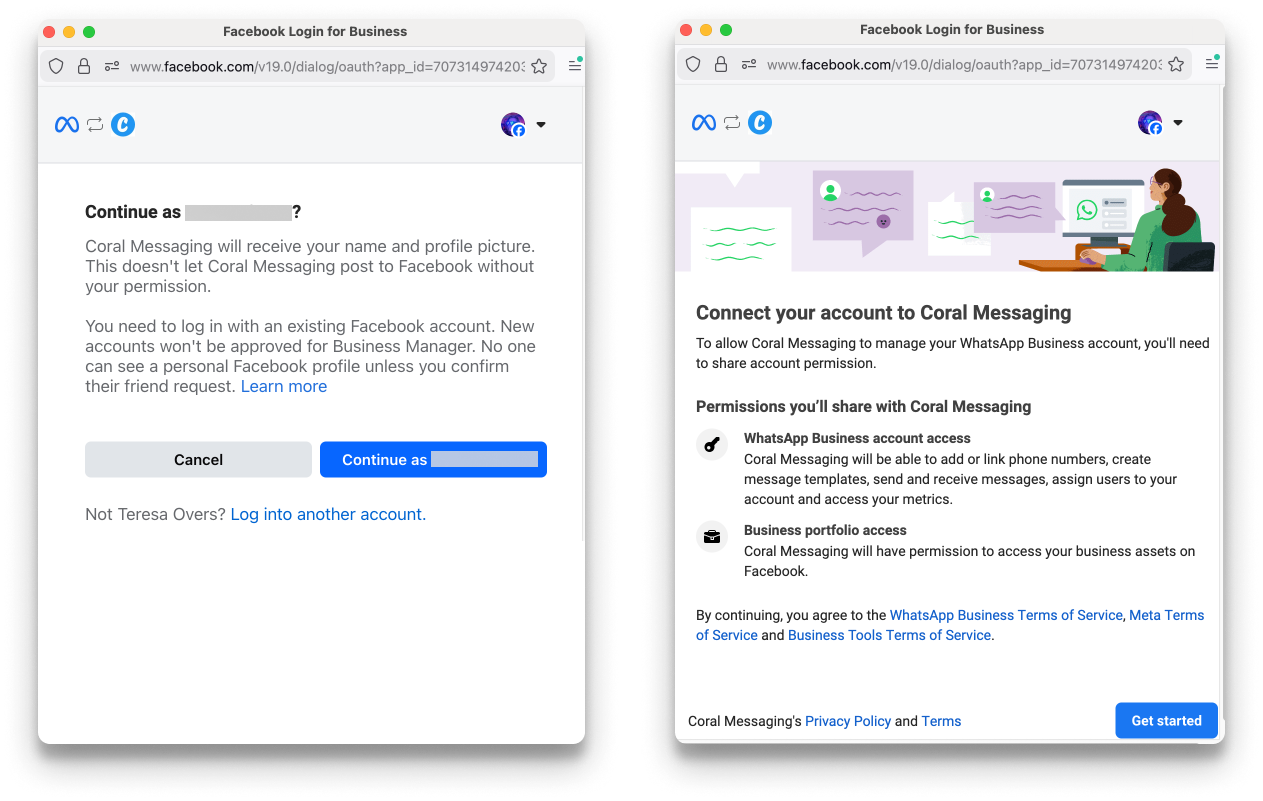
Enter your WhatsApp Business App phone number
Enter your WhatsApp Business App phone number
Enter the phone number that you want to sync to your Coral account and hit “Next”. Confirm that the WhatsApp Business App profile that appears is the one that you want to connect.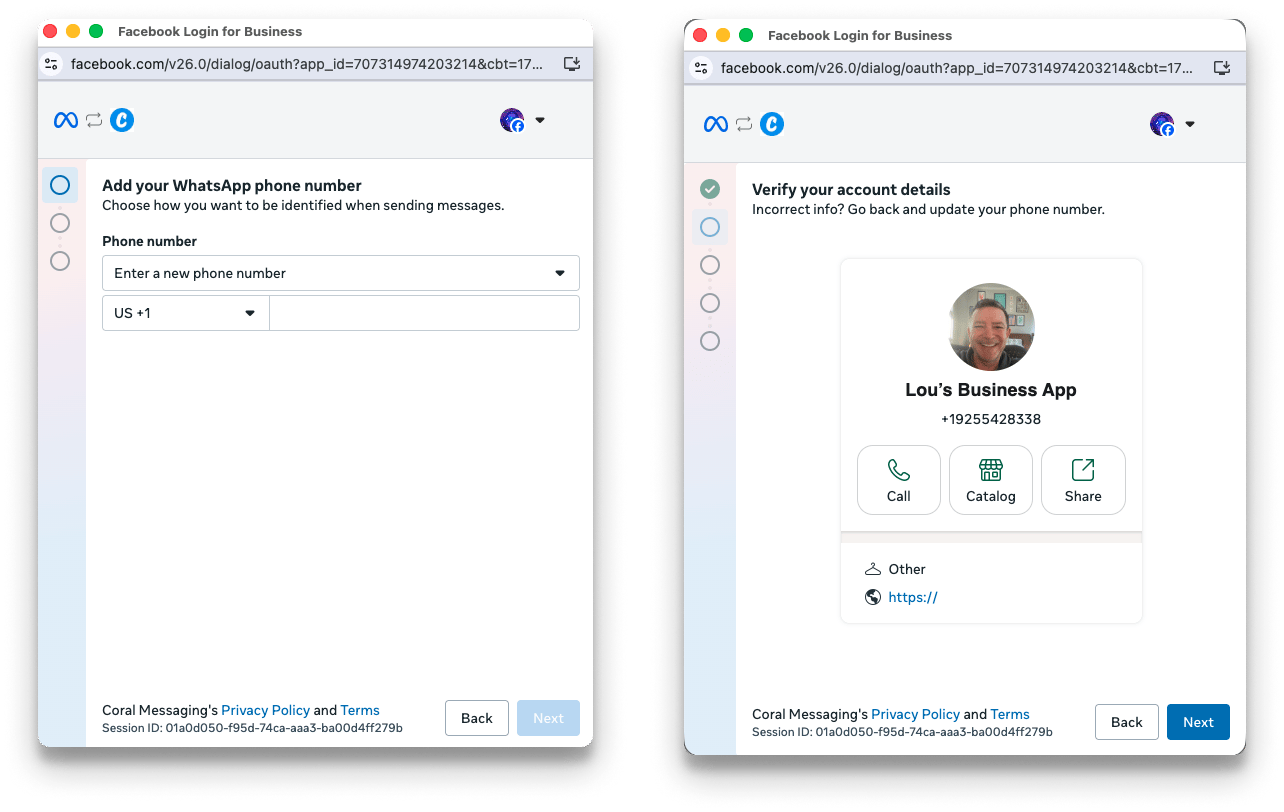
Select Meta Business Portfolio
Select Meta Business Portfolio
Select your the Meta Business Portfolio for your business from the list, ensuring that you select the one that your Coral account is already associated with. You must be an admin of a Meta Business Portfolio for it to appear on this list.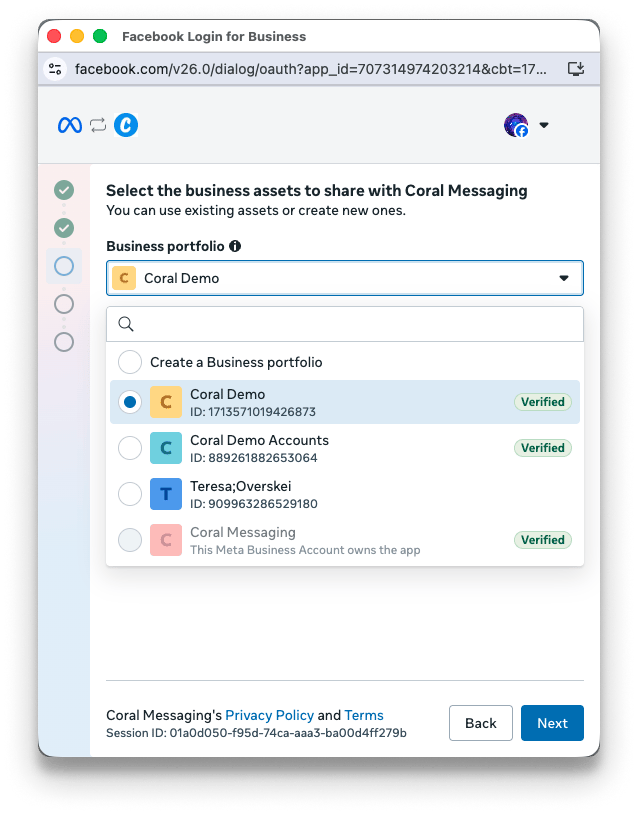
Wait for your WhatsApp Business App user to connect
Wait for your WhatsApp Business App user to connect
This phone number will immediately receive a WhatsApp chat with further instructions. Your screen will show a QR code while you wait. Once the WhatsApp Business App user is clicking through the prompts, they can complete the connection by either using the QR code on your screen, or you can provide them a code; either way works.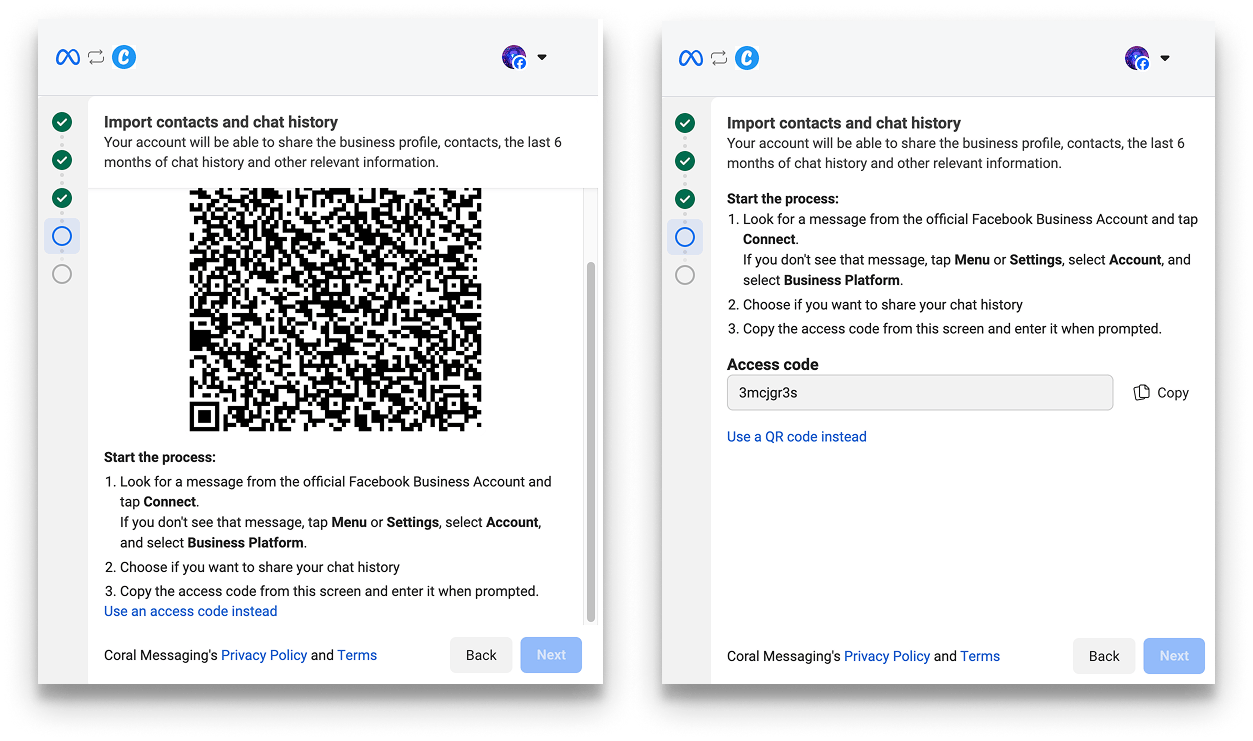
Follow the prompts in the WhatsApp Business App
Follow the prompts in the WhatsApp Business App
The person who uses the phone number you want to sync will have received a WhatsApp message to that number. Click through the prompts from this WhatsApp message, and choose to “Share chats” on the third screen. In the final screen, they must either scan the QR code on the Coral admin’s screen who started this process, or can enter the code seen on the Coral admin’s screen.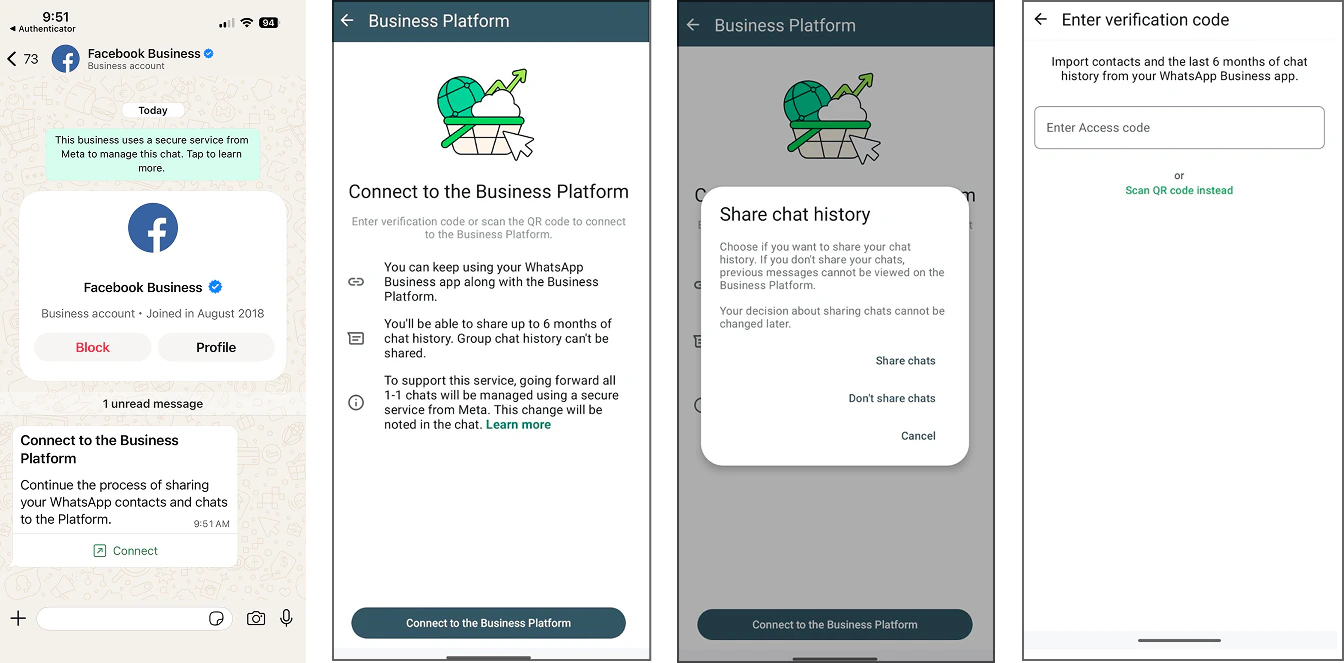
Confirm the WhatsApp Business Account
Confirm the WhatsApp Business Account
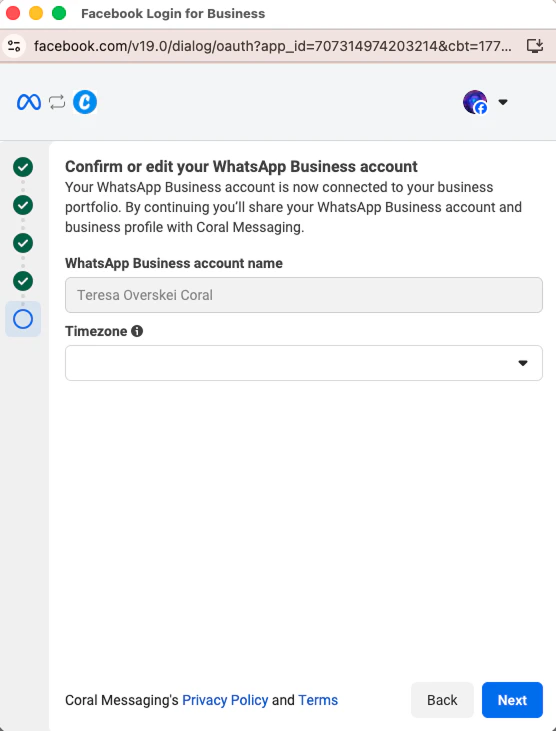
Enter the time zone of the person whose WhatsApp Business Account is being synced, then click “Next”, and then “Finish” on the final screen. There is no need to add a payment method.