Before you begin
This is a two-step process, which must be completed one step after the other in the same browser session, so be sure you have the necessary information to complete both parts before you start on step 1. You will need two things ready before you start:API phone number
A phone number that you want to use for your organization’s Coral API phone number. You must be able to verify it by receiving a PIN or phone call. There are some phone number types that WhatsApp won’t allow.
Admin access to Meta account
If your organization doesn’t have a Meta Business Portfolio account, you can set one up. If your organization already has one, it’s important that you use it, and Coral onboarding must be done by an admin of that account.
Step 1: Create a Coral account
The person completing this part will become the Admin of your organization’s Coral account. They can add more users later.Create account
Create account
Navigate to https://product.coralmessaging.com/signup/. Use the 4 digit code to start the process that was provided you by your Coral rep. The Coral product is still in closed beta and not widely available; please book time with Coral if you’d like to learn more and get access.Once this step is complete, click the button that says “Continue with Facebook” to move on to the next part.
IMPORTANT: when you provide your WhatsApp consumer app phone number, do not enter the phone number that your organization will use for your Coral API. This phone number will be needed for Part 2. Instead, enter the phone number that you normally use in WhatsApp chats with your work clients and contacts.
Step 2: Create a WhatsApp account
The person completing this part must be an admin of your organization’s Meta Business Portfolio. You will need to have the phone number handy that you want to use for your organization’s Coral API phone number, and you’ll need to be able to receive a verification code on it.Launch the WhatsApp window
Launch the WhatsApp window
Click “Continue with Facebook”. This step will open a pop-up window on facebook.com. Do not close the pop-up window or navigate to a different Coral website or close the Coral page. You will need the Coral window for later steps in this guide. Do not copy the URL of the pop-up window to send to another user as registration will fail. You must complete all of these steps using the same browser session in order for the data exchange between Meta and Coral to work properly and register you.
Log in to Facebook
Log in to Facebook
Log into Facebook if you haven’t already or click Continue as [your name] if you’re already signed in. Facebook will then ask you to allow Coral Messaging to manage your WhatsApp Business Account. Click Get Started to proceed.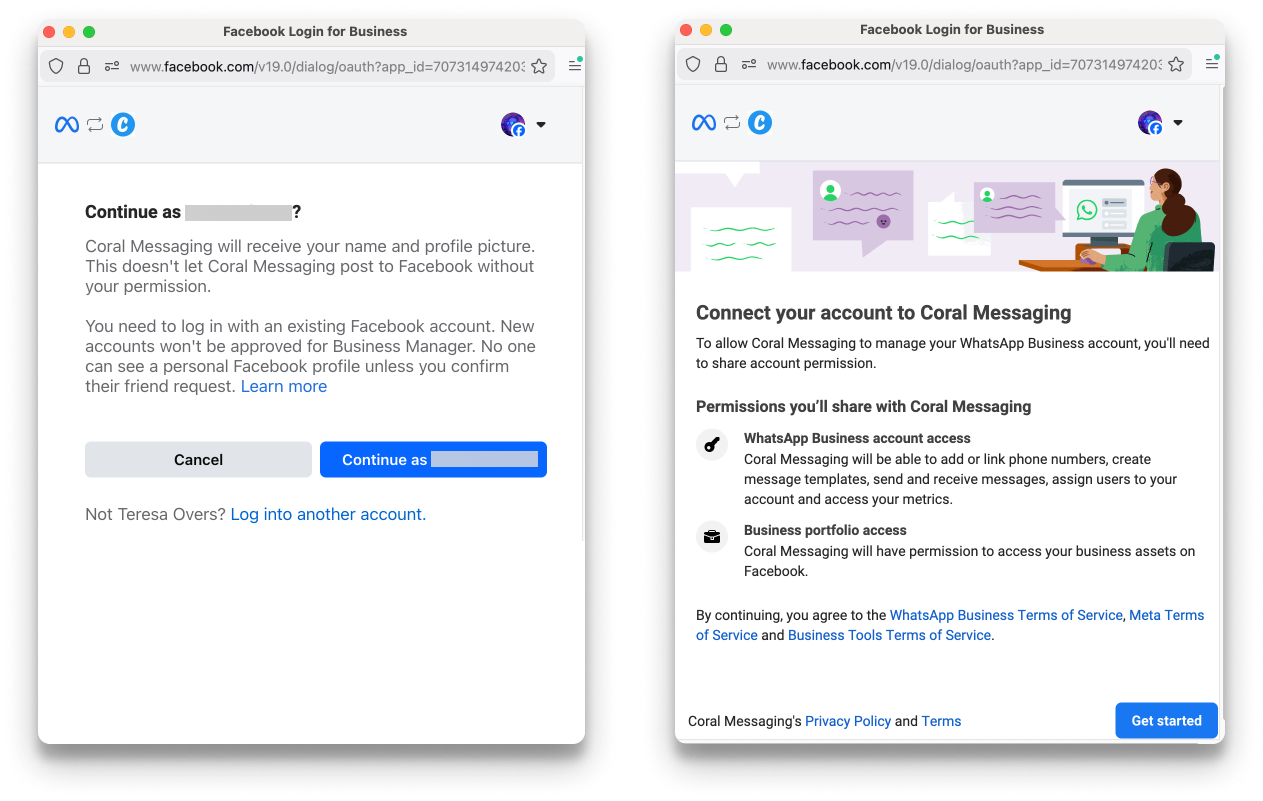
Verify your phone number
Verify your phone number
Add in the phone number you want to use for your Coral API here. Meta requires you to verify phone number ownership as a part of the registration process. This is done by sending a verification code using either SMS or an automated voice call. Follow the instructions.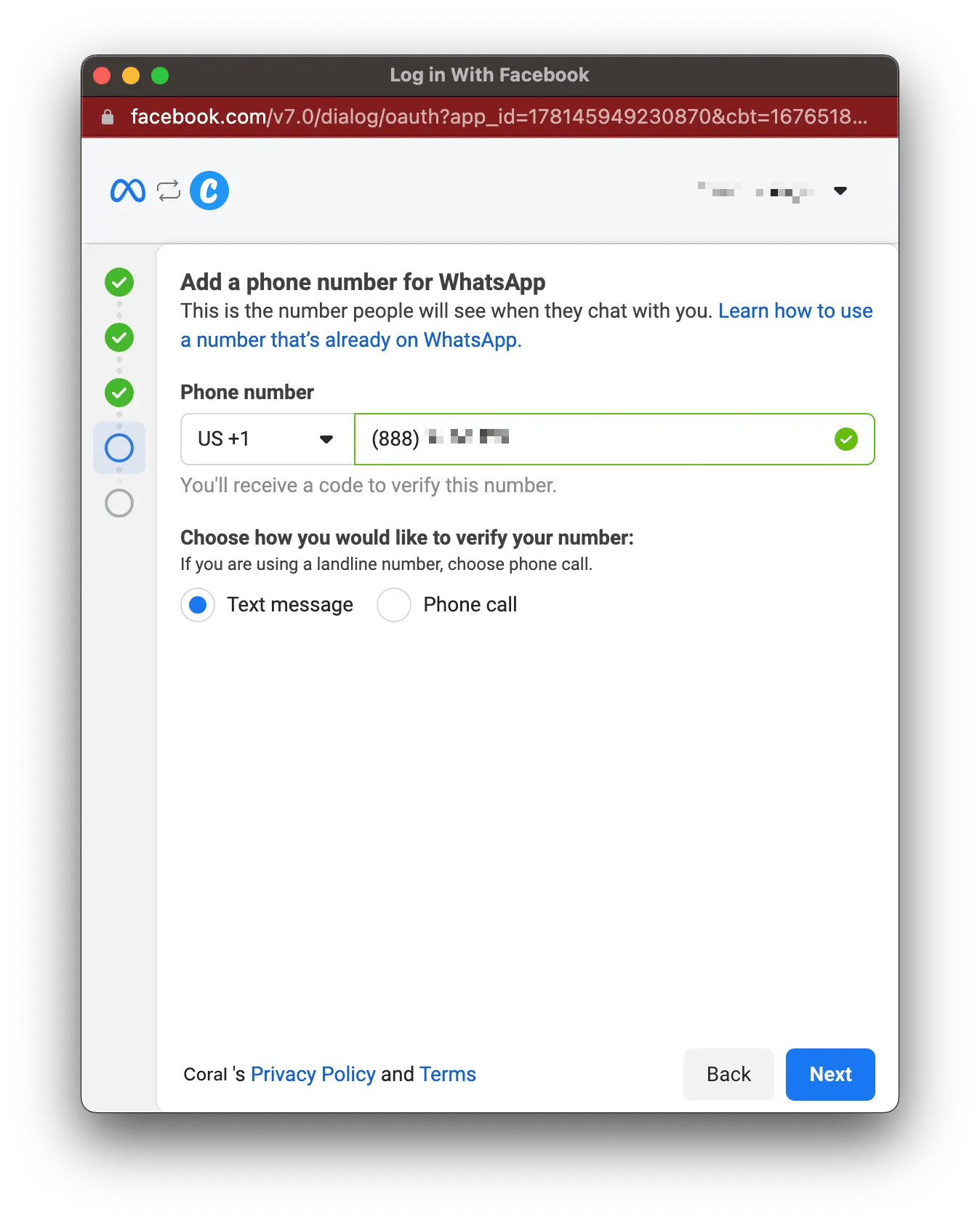
Select Meta Business Portfolio and create WhatsApp Account
Select Meta Business Portfolio and create WhatsApp Account
Select your the Meta Business Portfolio for your business from the list. You must be an admin of a Meta Business Portfolio for it to appear on this list. If you don’t have one, you may create a new one by selecting the option Create a Business Portfolio. Then create a new WhatsApp Business Account.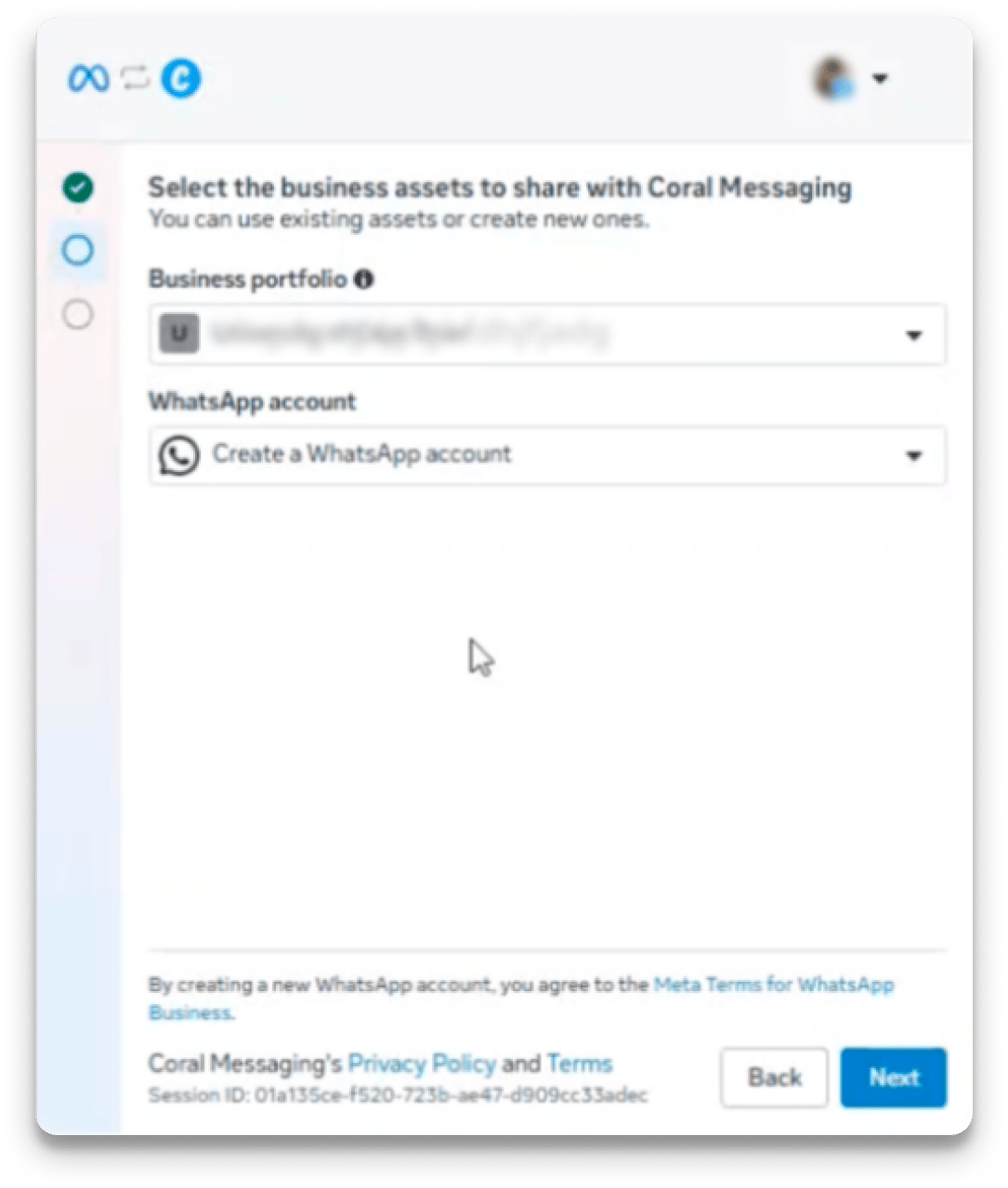
IMPORTANT: DO NOT select a WhatsApp Account that already exists in the dropdown list. Instead, choose to create both a new WhatsApp Account.
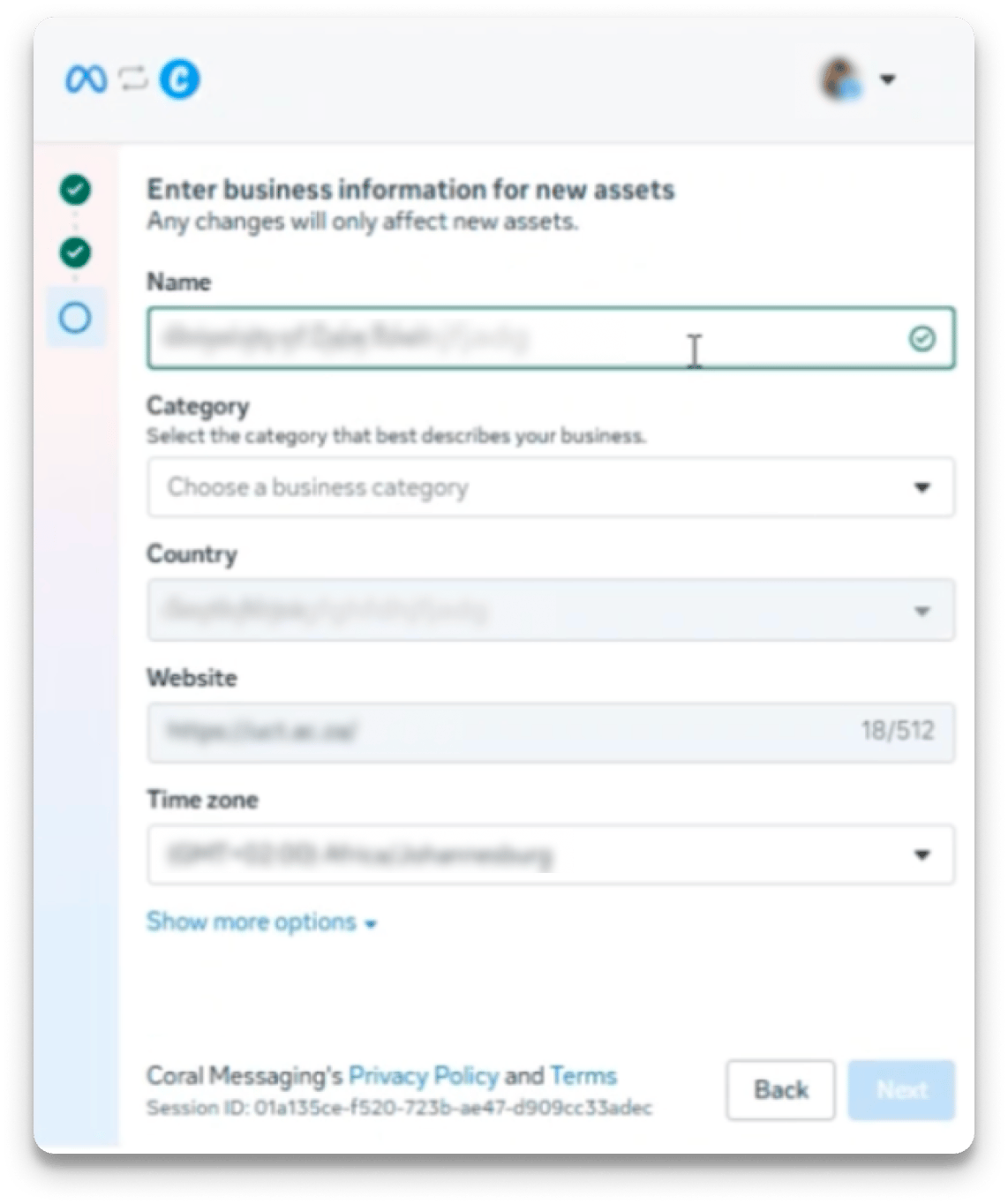
Enter business information
Enter business information
You will need to enter in the following information:
- WhatsApp display name - This is what your customers will see. It MUST meet the requirements set by WhatsApp. We recommend using your company name as the display name, as WhatsApp will reject most names that do not match the company name in the linked Meta Business Portfolio.
- Category - Select the category that best describes your business. This is shown to consumers when they view your profile and can be updated later by Coral as needed.
-
You may optionally fill out a few more fields. These fields can be also be added or updated later by Coral as needed.